Mapping proximity using a threshold filter

Mapping proximity using a threshold filter is a continuation of my experiments in to visualising the tube network. My previous experiment used Google Maps and its shape drawing tools to visualise proximity. This version tries a different approach using the Canvas object and simple image filters.

There are three parts to this experiment: the map, which is just a static image; the gradient image, which I’ll call the heat map; and a threshold filter written in javascript. The threshold filter is applied to the heat map and turns all pixels above a certain colour blue, and all below transparent.

This is a crop of the heat map, created in Photoshop using simple gradient fills and layer blends. Each spot is centered on a tube station. The colours in the gradient map neatly to the RGB components of a pixel colour, meaning the gradient moves smoothly from #FFFFFF, #FFFF00, #FF0000 to #000000. The values of each channel are added together giving a total of 765 levels for the threshold filter.

In order to composite the effect on top of the map I’ve used a Canvas object. Canvas has a few methods to directly affect its pixel data, the two I’ve used it getImageData and putImageData, which return and set the image an arrays of pixel data. This allows you to create something like a rudimentary pixel shader. For a threshold filter you simply need to clamp pixels either side of a given value to a specific colour. Here’s a stripped down version of how it works:

// Load an image and extract the pixel data
var imageData;
var img = new Image();
img.src = "gradient.png";
img.onload = function() {
	// Get image data from the canvas context
	imageData = context.getImageData(0, 0, canvas.width, canvas.height);
	runFilter();
};

function runFilter() {
	// Each pixel takes up 4 entries in the array using the RGBA format
	var originPixels = imageData.data;
	var filterPixels = imageData.data;
	for (var i = 0; i < originPixels.length; i += 4) {
		r = originPixels[i];
		g = originPixels[i+1];
		b = originPixels[i+2];
		filterPixels[i] = filterPixels[i+1] = 0; // Red/Green channels
		filterPixels[i+2] = 255; // Blue
		filterPixels[i+3] = ((r + g + b) >= amount) ? 96 : 0; // Alpha
	}

	// Dump filtered pixel data to the canvas
	canvasContext.putImageData(filterData, 0, 0);
}

See the source of the actual experiment page for the rest of the code. With further work I hope to be able to generate the heat map from the geographic data I used in the previous experiment, and the canvas threshold filter integrated into Google Map overlays.

Tube station proximity map

Tube station proximity is a simple mapping tool I developed that places circles round the locations of tube stations on Google Maps. It can give you an approximation of walking distance to each station and an overall view of how London is covered by the underground network.

This is a tool I’ve been meaning to upload for ages. The previous version of Google Maps API was slow at drawing shapes to layers and I lost interest soon after starting development. However the v3 API has improved the speed of things considerably, especially in shape drawing, and has made it a worthwhile project again. Some older computers/browsers may still take a while to update when changing zones/lines, especially when turning all of them on or off, but in general it takes no more than a second or two.

I’ve always been interested in maps and the way in which they can be combined with other data to provide a different view on a city, Charles Booth’s poverty map of London is a long favourite of mine, as is the iconic tube map. A while ago I found a CSV of all the underground station locations and the idea of creating something the data came to mind. At the time I was trying to move house and wanted somewhere within easy walking of a tube station, so the idea to create a proximity map arose.

Looking at the map there are some interesting things to note: The north-west is served particularly well by the tube network. This area was commonly known as Metroland in the earlier part of the 20th century and was given good links to city for commuters. In contrast south London has very few stations, sometimes attributed to the geology of the ground in the area, but most likely the result of it already having a good overground network by the time the tube was gaining popularity. It’s also worth noting that the Overground is not portrayed in the map, unfortunately it was not in in the CSV data.

Flashkana Android app now available

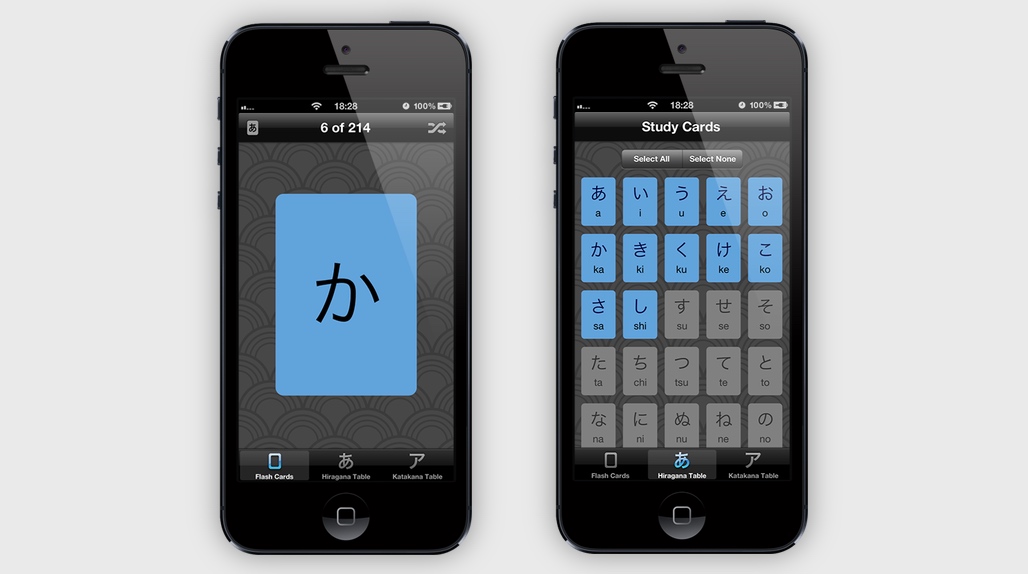
My second Android app is now available on the market. Flashkana is a simple flash cards style application to help you learn Japanese kana.

Flashkana 1Flashkana 2Flashkana 3

Kana are the characters that build up the two Japanese syllabaries, Hiragana and Katakana. They are similar, but not identical to the concept of the roman alphabet, and learning them is the first step to understanding Japanese writing. There are over 200 kana, including all variants, so becoming familiar with the entire set takes some time. Flashkana helps you learn them in your own pace using the traditional flash cards method.

The app was in development for several months, using my spare time between other work. One of the biggest challenges was the card swiping mechanism. Android doesn’t have a built-in component for swiping pages left/right with your finger, so I had to write one myself. I also encountered very slow view rendering times, especially when creating 200+ cards, and eventually came to solution that used lots of lazy instantiation and a few threads.

The app is free, so head over to the Android market to download a copy. You can also download my previous app if you like, a simple notepad designed for speed and simplicity.

Instantiating a large number of views in Android

A complex layout hierarchy can be an expensive and lengthy operation to instantiate in Android, usually causing the app to pause and look like it’s hung. Most of the time it’s advisable to use a mechanism that recycles elements, like a ListView, but occasionally you may find yourself requiring a custom layout where recycling won’t work. You probably won’t notice a slowdown until you exceed 100+ elements in a view, and it would be sensible to think about whether there isn’t a better solution, but if there isn’t then the idea below may help you out.

Inflating on a separate thread

In Android you can only manipulate the display hierarchy from the main activity thread. Lengthy operations on this thread block any visual update routine, giving the impression that the app has hung. Adding a view to Android is an example of something that requires the main thread. However adding a view is usually a two step process: 1) inflating the view from the resource, 2) adding the view to a parent in the display hierarchy. The second must occur on the main thread, otherwise it’ll throw an error, but the first step, inflation, can be done on another thread. This effectively halves the time the main thread spends blocked and allows you show to a progress indicator of some description. To do this break the inflation part out into a new AsyncTask, like so:

private ArrayList<View> inflatedViews;
private LayoutInflater inflater;
private RelativeLayout parentView;

private class InflateViews extends AsyncTask<Void, Integer, Boolean>
{
    @Override
    protected void onPreExecute()
    {
        // set up anything before the thread starts, like a progress indicator
    }

    protected Boolean doInBackground()
    {
        for (int i=0; i < 100; i++)
        {
            // The false at the end tells the inflator not to add the view to the hierarchy
            View myView = (View) inflater.inflate(R.layout.my_view, parentView, false);
            inflatedViews.add(myView);
        }
        return true;
    }

    protected void onProgressUpdate(Integer... progress)
    {
        // update progress indicator
    }

    protected void onPostExecute(Boolean result)
    {
        for (View myView : inflatedViews)
        {
            parentView.addView(myView);
        }
        // dismiss progress indicator
    }
}

private void runInflateTask()
{
    inflater = LayoutInflater.from(getContext());
    parentView = (RelativeLayout) findViewById(R.id.MyParentView);
    new InflateViews().execute();
}

AsyncTask is a simply way to spawn a background thread. The view inflation occurs in doInBackground, and because it doesn’t need to manipulate the display hierarchy it won’t throw an error. The onPostExecute method runs back on the main thread where it’s safe to add the inflated views. This doesn’t entirely eliminate the pause that occurs, but it significantly reduces it, and opens up the possibility of showing the user visual feedback while the background task executes.

Matrix offset for tiled BitmapDrawable

Tiled patternThe Android framework’s BitmapDrawable class allows you to draw a bitmap onto a view. The bitmap can be tiled which is particularly useful for creating backgrounds that work on a variety of screen sizes and dimensions.

I thought it would be an good idea to see if I could apply matrix transformations to the bitmap, while keeping it a reusable object in the Android view hierarchy. Doing so would allow you to create some interesting animations and effects. One such technique would be to apply a translation to the bitmap matrix, shifting it along either of the axis’ and creating the illusion of an infinitely scrolling background.

The MatrixBitmapDrawable

In order to change the way in which a bitmap is drawn we need to apply a matrix transformation to it. The class below extends the built in BitmapDrawable class and adds such functionality, opening up some variables in the API as well. This means you can use it in place of the original wherever you want.

package;

import android.content.res.Resources;
import android.graphics.Bitmap;
import android.graphics.BitmapShader;
import android.graphics.Canvas;
import android.graphics.Matrix;
import android.graphics.Paint;
import android.graphics.Shader;
import android.graphics.drawable.BitmapDrawable;

public class MatrixBitmapDrawable extends BitmapDrawable
{
    private float offsetX = 0;
    private float offsetY = 0;

    private Bitmap mBitmap;
    private Paint mPaint;
    private BitmapShader mShader;
    private Matrix mMatrix;

    private int mBitmapWidth;
    private int mBitmapHeight;

    public MatrixBitmapDrawable(Resources res, Bitmap bitmap)
    {
        super(res, bitmap);

        // Save reference to the bitmap and it's width & height
        mBitmap = getBitmap();
        mBitmapWidth = mBitmap.getWidth();
        mBitmapHeight = mBitmap.getHeight();

        // Set the bitmap to tile horizontally and vertically
        setTileModeXY(Shader.TileMode.REPEAT, Shader.TileMode.REPEAT);

        // The Paint and Shader objects hold the bitmap and matrix information
        mPaint = new Paint(Paint.FILTER_BITMAP_FLAG | Paint.DITHER_FLAG);
        mShader = new BitmapShader(mBitmap, Shader.TileMode.REPEAT, Shader.TileMode.REPEAT);
        mPaint.setShader(mShader);

        // The matrix object to translate the bitmap
        mMatrix = new Matrix();
    }

    public float getOffsetX()
    {
        return offsetX;
    }

    public void setOffsetX(float value)
    {
        // Set offset and invalidate self so draw is called
        offsetX = value % mBitmapWidth;
        invalidateSelf();
    }

    public float getOffsetY()
    {
        return offsetY;
    }

    public void setOffsetY(float value)
    {
        // Set offset and invalidate self so draw is called
        offsetY = value % mBitmapHeight;
        invalidateSelf();
    }

    @Override
    public void draw(Canvas canvas)
    {
        if (mBitmap != null)
        {
            // Set matrix transformation and draw the bitmap to the canvas
            mMatrix.setTranslate(offsetX, offsetY);
            mShader.setLocalMatrix(mMatrix);
            canvas.drawRect(getBounds(), mPaint);
        }
    }
}

To use the class just treat it like any other Drawable object. The example below loads a bitmap from the resources and creates a new MatrixBitmapDrawable with it. It then sets it as the background of a view and changes the offset variable opened up in the API.

Bitmap tileBitmap = BitmapFactory.decodeResource(getResources(), R.drawable.my_tile_pattern);
tileBg = new MatrixBitmapDrawable(getResources(), tileBitmap);
mainView.setBackgroundDrawable(tileBg);
tileBg.setOffsetX(20); // Offset the bitmap to the right by 20 pixels

Extending the functionality

You could add any number of matrix transformations to the class, they just need to be added in the draw() method. Remember to create a getter/setter for the variable so it can be manipulated from outside. You could use a combination of the Matrix’s pre- and post- method calls to do things like rotate, scale and skew the bitmap all at once.

Download the MatrixBitmapDrawable.java class.

Fireflies and Processing.js

I was interested in seeing whether Processing.js would make working with the HTML Canvas element any easier. Processing.js is the javascript implementation of the original Processing, a graphics programming tool for Java. The javascript version follows a similar syntax to it’s brother, which is quite abstracted from regular javascript, so I got the idea of comparing an example written in both.

Fireflies experiment

Fireflies

The Processing.js version and the regular javascript version.

Once again I ported this from an old Actionscript 1 experiment. Both versions look identical and perform nearly the same. The Processing.js version may be slightly slower, but the difference is negligible. Be sure to check out the source for each example as you can see how neat the Processing.js syntax is. It certainly promotes experimentation and quick prototyping. My only concern is the way in which the language is somehow interpreted to regular javascript. A had a couple of bugs earlier on and the errors were unintelligible and divorced from my original code.

As a final note, there’s some vital information missing from the beginners guide on the Processing.js website. Things are a lot easier if you use the init.js script found in their examples.zip. It took me quite a while to get things set up, so follow the points below if you’re having trouble.

  1. Add the processing.xx.min.js in a script tag.
  2. Add init.js in the same manner, which can be found in the examples zip on the Processing.js website.
  3. Ensure your processing script tag and Canvas object are in the same div container, and the script tag is above the canvas.
  4. Be sure to have a setup() method and inside set the canvas size with the size() method

Flash and HTML 5 Canvas

Over the holidays I gave myself a break from Actionscript and took a look at the HTML 5 Canvas object. It’s been a while since I programmed javascript so was keen to see what could be done with some of the new HTML 5 elements. I decided to port over an old Actionscript 1 experiment to see how the two technologies performed alongside each other, and seeing as it’s winter my choice was a little seasonal.

Snowfall canvas experiment

Snowfall

Check out the Flash version and the Canvas version

You’ll need a modern browser to view the canvas version (eg: Firefox, Chrome, Safari), they seem to vary wildly in performance so if one’s too slow try taking a look in another.

After lots of tweaking I managed to get them looking pretty much identical. The biggest difference however lies in performance. Flash is a lot faster and can handle more than double the slowflakes while maintaining a decent frame rate. Javascript does a good job, but seems prone to hiccups and frequent speed changes. It’ll be interesting to see if Canvas and javascript performance increases over time, because right now it seems a little lacklustre.

If you’re coming from a Flash background then working with Canvas is relatively easy, it’s very similar to the BitmapData object and shares a similar API to the Graphics object. Besides performance my other concern is it doesn’t seem like a particularly good animation tool. As everything is a bitmap operation I think some form of abstracted library would be required to get the most out of it, something that provided a similar nested-sprite system to Flash.

Overlapping hit areas for sibling sprites

Occasionally I come across a problem in Flash where I need two overlapping buttons to respond to the mouse. In this case a button is any object that has a mouse handler and inherits from InteractiveObject, which includes Sprite and SimpleButton. The problem is when two or more of these objects are siblings (i.e. in the same container, not nested) and they overlap, then they block each other. The top-most one will always receive mouse interaction and anything beneath is blocked. Mouse event propagation only occurs for nested children, not siblings. Here’s a simple diagram that explains the problem:

Flash button layers

Ideally both Sprites would dispatch mouse events when the user interacts. Now sometimes you can get round it by nesting buttons and using a mixture of ROLL_OVER and MOUSE_OVER events, but this isn’t always practical, especially if you need to manage several overlapping buttons. So I’ve come up with an alternate solution based around the hitTest method from AS2.

The idea is to create a ‘fake’ hit area using the Retangle object. Rectangle has a method called containsPoint, which you pass a Point object and it returns true or false depending on whether the coordinates fall inside the Rectangle. So if you pass the mouse coordinates you can determine whether the mouse is inside the ‘fake’ hit area. Also, because Rectangle isn’t a display object it can’t block mouse interaction, and so you can have multiple overlapping hit areas that all trigger when clicked.

The containsPoint method has to be continually polled, so it needs to be called everytime the mouse moves. I’ve written some code that wraps this functionality up for ease of use. It’s a little long so I’ll include a link to the class here so you can take a look.

Download HitArea.as

Example usage

Below we set up two hit areas and overlap them by 100px. The hit areas are invisible, so they won’t show up on the stage, but when you click on the overlapping section the CLICK event will fire twice, once for each hit area. There are also HitArea.ROLL_OVER and HitArea.ROLL_OUT events should you need them.

hitArea1 = new HitArea(200, 200);
addChild(hitArea1);
hitArea1.addEventListener(HitArea.CLICK, hitAreaClick, false, 0, true);

hitArea2 = new HitArea(200, 200);
addChild(hitArea2);
hitArea2.x = 100; // overlap with first hit area by 100 px
hitArea2.addEventListener(HitArea.CLICK, hitAreaClick, false, 0, true);

private function hitAreaClick(event:Event):void
{
    trace("click: " + event.target.name);
}

Unfortunately there are two downsides to this method: firstly it’s slightly more cpu intensive (it needs to constantly run code whenever the mouse moves). Secondly you can’t use the hand cursor with the hit area, which is probably the more problematic of the two, and I’ve yet to find a solution.

Modulo and the negative divisor

I never had reason to doubt the modulo operator in Actionscript, but it turns out it works differently in other programming languages. I discovered this while converting Python program to Flash. In Python the result of the modulo operation has the same sign as the right-hand number (divisor), but in Actionscript it has the same sign as the left-hand number (dividend). There’s a wikipedia article on modulo operation that explains it in more detail, and has a list of languages and their relevant implementation.

So if you need to retain the sign of the divisor in your result (i.e. the reverse of Actionscript’s default implementation) here’s a short method to achieve it:

public function mod(a:Number, b:Number):Number
{
    return a - (b * Math.floor(a/b));
}

trace(100 % -30); // output: 10
trace(mod(100, -30)); // output: -20

Time sync for remote server

Here’s a quick little utility I used in my last project: a simple class that syncs with a remote time source. It can be used to ensure your application runs on time from a server rather than the user’s system clock. You sync once with the remote server at the start, and then Flash runs an internal timer to calculate the time elapsed since you last synced. If you need to query a remote time source regularly during the life of your application then this can reduce the number of calls made to the server.

Inside it uses the getTimer() function, which is good at keeping sync and is unaffected by system clock changes, even mid-application. The class a singleton, for simplicity, but you can use it differently if you like.

package
{
    import flash.utils.getTimer;

    /**
    * TimeSync maintains a seperate time value from the system clock.
    */
    public class TimeSync
    {
        private static var _instance:TimeSync;

        public static function getInstance():TimeSync
        {
            if (_instance == null) _instance = new TimeSync();
            return _instance;
        }

        /**
        * Internal time-stamp value to sync to.
        * Must be set using sync().
        */
        protected var _syncStamp:Number;

        /**
        * Time-stamp for the internal flash getTimer().
        */
        protected var _timerStamp:Number;

        public function TimeSync() {}

        /**
        * The time elapsed since the last sync, in millseconds.
        */
        public function get delta():Number
        {
            return (getTimer() - _timerStamp);
        }

        /**
        * The synchronized time value, in milliseconds. Pass this into
        * a new Date object to get formatted time: new Date(time);
        */
        public function get time():Number
        {
            return (_syncStamp + delta);
        }

        /**
        * Sync the timer to a new time value.
        * @param time Unix time value in milliseconds
        */
        public function sync(time:Number):void
        {
            _syncStamp = time;
            _timerStamp = getTimer();
        }
    }
}

Download: TimeSync.as

To use it just call the sync() method and set the time value you want to sync to. Then everytime you need the synced time value use the .time property to retrieve it. You can also pass the time value into a new Date object to format it.

// Example
var timeSync:TimeSync = TimeSync.getInstance();
timeSync.sync(987654321098); // set unix time value, in milliseconds
trace(timeSync.time); // 987654321098
trace(new Date(timeSync.time)); // Thu Apr 19 05:25:21 GMT+0100 2001

Remote sync example

To get it syncing remotely you just need to retrieve a unix time-stamp from a server. A simple bit of php code can do this:

<!--?php echo 'time='.time(); ?-->

Then use URLLoader in Flash to retrieve the value. Remember to multiply the value to milliseconds, Unix time is usually returned in seconds but Flash works in milliseconds.

public function syncServerTime():void
{
    var request:URLRequest = new URLRequest(ìhttp://webroo.org/time.phpî);
    var loader:URLLoader = new URLLoader();
    loader.dataFormat = URLLoaderDataFormat.VARIABLES;
    loader.addEventListener(Event.COMPLETE, loaderCompleteHandler);
    loader.load(request);
}

public function loaderCompleteHandler(event:Event):void
{
    var time:Number = (event.target as URLLoader).data.time;
    TimeSync.getInstance().sync(time * 1000); // Multiply unix time to ms
}

Download: TimeSyncExample.as